


Nanny Camera Not Working? Common Problems and Practical Fixes
A nanny camera not working usually comes down to five areas: power, WiFi connection, app access, recording settings, or storage. A dead device is possible, but it is not the first assumption to make.
A nanny camera is a small monitoring camera used to check child care, elder care, pets, or home activity. Some models are visible indoor WiFi cameras. Others are hidden nanny cameras built into clocks, chargers, picture frames, smoke detector housings, or other everyday objects. Because these devices are compact, they are more sensitive to battery capacity, WiFi signal strength, storage limits, heat, and app configuration than a full-size security camera.
Start with the basics. Then move deeper.

Quick Troubleshooting Checklist Before You Assume the Camera Is Broken
Before resetting the nanny camera or returning the product, run through a short checklist. Most common nanny cam problems can be narrowed down in less than ten minutes.
|
Problem Area |
What to Check First |
Typical Symptom |
|
Power |
Battery, adapter, cable, outlet, indicator light |
Camera will not turn on |
|
WiFi |
2.4GHz network, password, router distance |
App shows offline |
|
App |
Login, device binding, permissions, app version |
Live view unavailable |
|
Recording |
Motion detection, schedule, privacy mode |
Live view works but no video is saved |
|
Storage |
SD card, cloud plan, loop recording |
Footage missing or recording stops |
|
Firmware |
Camera firmware and app update |
Freezing, lagging, repeated disconnection |
Do not judge the camera only by the live view. A nanny camera can show live video but still fail to record. It can also record locally on an SD card while the app shows offline because the remote connection failed.
That distinction matters.
Power and Battery Problems
Power problems are the first thing to check when a nanny camera will not turn on, shuts down too quickly, or behaves unpredictably. For battery-powered hidden nanny cameras, power issues are more common than users expect because the body size limits battery capacity.
The Camera Will Not Turn On
If the nanny camera shows no light, no sound, no app response, and no reset reaction, start with the power path.
Check the outlet with another device. Then check the USB cable, power adapter, charging dock, and camera port. Many small cameras use 5V USB power, but not all adapters deliver stable current. A low-quality adapter may power a phone slowly but fail to keep a camera stable during WiFi connection or night recording.
For a hidden nanny camera, the indicator light may be very small or disabled by design. Some models use a pinhole LED to avoid drawing attention. Do not assume there is no power just because you do not see a bright light. Hold the power button for the full required time, usually 3–5 seconds, and check the manual for the exact light pattern.
If the unit has been stored for months, charge it for at least 2–3 hours before testing. Lithium batteries can enter a low-voltage state after long storage. The camera may not wake up immediately when plugged in.
The Camera Shuts Off After a Short Time
A nanny camera that turns off after 10, 20, or 30 minutes may not be defective. The working time depends on battery size, recording mode, WiFi transmission, resolution, and night vision.
A very small hidden camera cannot hold the same battery as a large indoor WiFi camera. A 1080p mini camera running continuous recording and WiFi live streaming will drain much faster than the same device using motion detection recording. If infrared night vision is active, power consumption rises again.
Common causes include:
- Battery not fully charged
- Battery aging after repeated cycles
- Continuous recording instead of motion recording
- High resolution or high frame rate
- Weak WiFi forcing the camera to work harder
- Device overheating and shutting down for protection
For small nanny cams, a realistic setup often means 1080p recording, motion detection, and SD card storage rather than continuous 24-hour recording on battery power. If you need all-day monitoring, use a wired power model.
The Charging Light Is Abnormal
A flashing charging light can mean low power, charging, WiFi pairing, SD card error, or firmware activity. The meaning changes by model.
If the light blinks but the camera never powers on, test with another cable and adapter first. If several adapters produce the same result, the issue may be the battery, charging board, or main PCB. At that point, repeated reset attempts will not solve the root problem.
Power is not a small detail. For nanny cameras, unstable power can also cause corrupted video files, failed SD card writing, and random app disconnection.

WiFi and App Connection Problems
Most modern nanny cameras depend on WiFi and a mobile app. When users say "my nanny camera is not working," they often mean the app cannot connect, not that the camera has stopped recording.
A WiFi nanny camera is a camera that sends live video or event clips through a wireless network to a mobile app. This makes remote viewing possible, but it also creates more failure points.
The Camera Cannot Connect to WiFi
The most common cause is simple: the camera does not support the WiFi network being used.
Many nanny cameras still require 2.4GHz WiFi. The 2.4GHz band has longer range and better wall penetration than 5GHz, which is why many small smart devices use it. If your router combines 2.4GHz and 5GHz under one network name, the camera may fail during pairing. Separating the bands temporarily can help.
Check these points:
- The camera supports the WiFi band you selected
- The WiFi password is correct
- The router is not too far from the camera
- The camera is not hidden behind metal, thick walls, or large appliances
- The router has not blocked new devices
- The app has Bluetooth, local network, and camera permissions if required
A hidden nanny camera placed inside a decorative object may look better, but the position can weaken WiFi. Metal housings, dense shelves, and walls between the camera and router all reduce signal quality.
The App Shows Offline
An offline status does not always mean the camera is dead. It means the app cannot currently reach the device through the network or cloud service.
The camera may still be powered on. It may even be recording locally to the SD card.
Possible causes include router reboot, weak WiFi, changed password, app logout, expired device binding, cloud server delay, or firmware instability. If several smart devices in the same home also drop offline, the router or internet connection is more likely than the camera.
A useful test is to bring the camera within 1–2 meters of the router and reconnect it. If it works near the router but fails in the original location, the issue is signal strength or placement, not the camera module.
Remote Viewing Is Lagging or Freezing
Live video delay usually comes from bandwidth, not the lens.
A 1080p stream needs stable upload speed from the home network and stable download speed on the phone side. If the home internet is weak, or several devices are streaming at the same time, the nanny cam app may freeze or drop to low quality.
Try lowering the video quality in the app. If the camera becomes stable at standard definition but freezes at HD, the network cannot support the higher stream reliably.
Firmware also matters. Outdated firmware can cause reconnection loops, app crashes, or delayed push alerts. Update the app and firmware, but do not cut power during the update.
WiFi problems should be tested in the simplest environment first. Router nearby, full battery, fresh app login, and a known correct password.
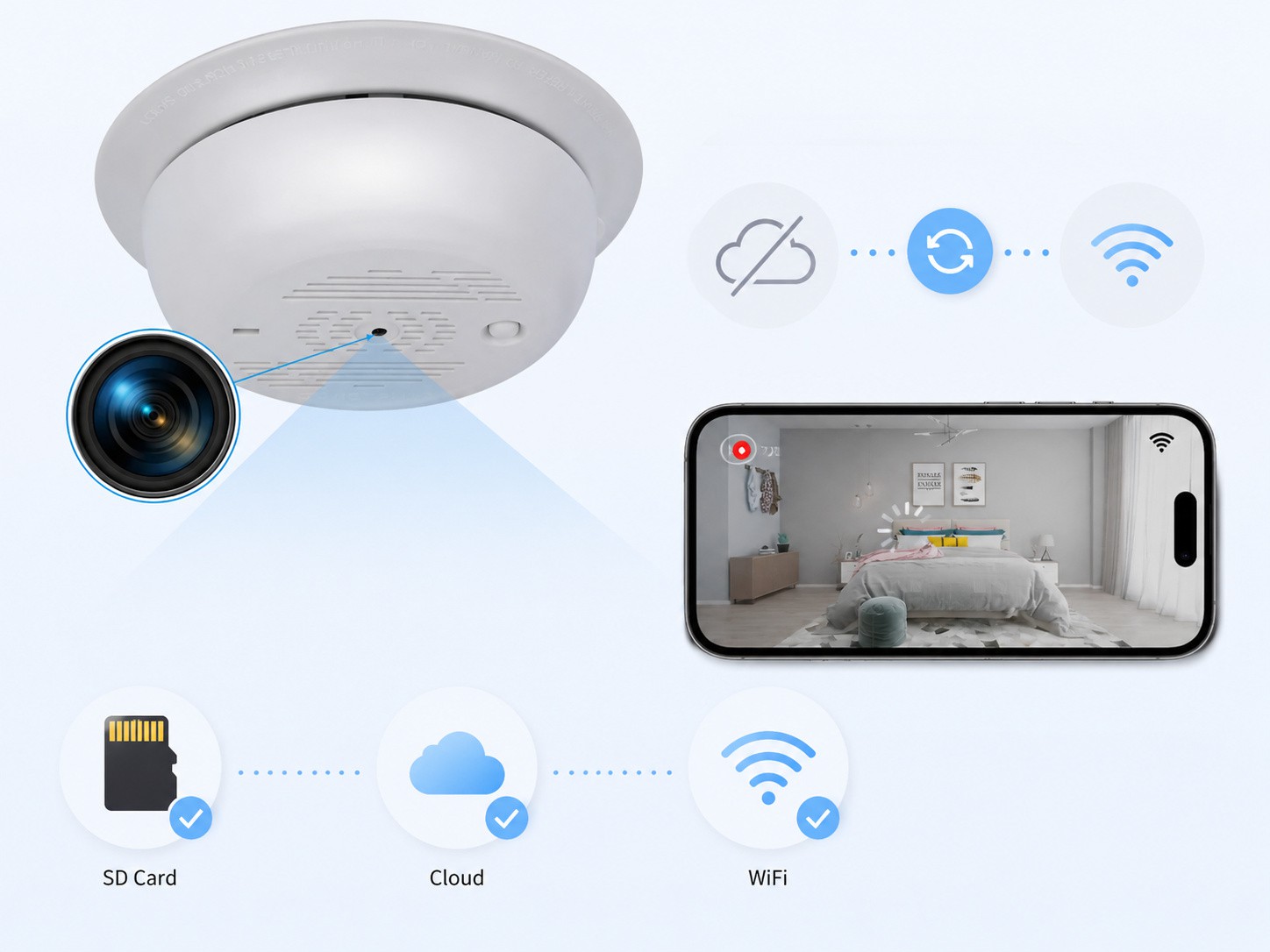
Recording and Storage Problems
A nanny camera not recording is different from a nanny camera not connecting. This is where many users misjudge the fault.
Recording means the camera saves video to a storage location. That location may be a microSD card, cloud storage, built-in memory, or a local recording system. Live view only means the camera can show real-time video.
The Camera Has Live View but Does Not Record
If live view works but no files are saved, check the recording mode first.
Many nanny cameras support three recording modes:
|
Recording Mode |
How It Works |
Common Issue |
|
Continuous recording |
Records all the time when powered |
Fills storage quickly |
|
Motion detection recording |
Records only when movement is detected |
May miss events if sensitivity is too low |
|
Scheduled recording |
Records during selected time periods |
Wrong time zone or schedule stops recording |
Motion detection is not magic. It depends on movement area, sensitivity, light, camera angle, and algorithm design. A child moving at the edge of the frame may not trigger recording if the detection zone is too narrow. A curtain moving near a window may trigger too often if sensitivity is too high.
Also check privacy mode. Some nanny camera apps allow users to disable recording temporarily. If privacy mode is on, the camera may stay connected but stop saving footage.
SD Card Is Not Detected
A microSD card is the most common local storage method for a hidden nanny camera. It allows the camera to record without depending on cloud upload. But SD card problems are also common.
Do not only check capacity. Check compatibility.
A camera may support up to 64GB, 128GB, or 256GB depending on chipset and firmware. A 256GB card inserted into a camera that only supports 128GB may fail, format incorrectly, or record unstable files.
Common SD card problems include:
Card not fully inserted
Wrong format, such as unsupported exFAT or FAT32 handling
Low-quality card with poor write stability
- Card speed too slow for video recording
- Card physically damaged
- Write protection issue
- Files corrupted after sudden power loss
For nanny cameras that record repeatedly, a high-endurance microSD card is safer than a cheap standard card. These cards are designed for frequent overwriting in cameras and dashcams. For 1080p recording, Class 10 or UHS-I cards are commonly used, but always follow the camera specification.
Format the card inside the camera app if the option exists. Formatting on a computer may use a file system the camera does not handle well.
Footage Is Missing or Overwritten
Missing footage is not always a camera failure.
Loop recording means the camera automatically overwrites older files when storage is full. This is useful because the camera can keep recording without manual cleanup. The trade-off is that old footage disappears.
If you need to keep key events, check whether the camera supports event file lock, cloud event backup, or manual download. A 64GB card may hold many hours of 1080p motion clips, but far less continuous footage. Higher bitrate, 2K video, or 30fps recording reduces retention time quickly.
If loop recording is off, the opposite problem can occur: storage fills up and recording stops.
A nanny camera used for evidence should not rely on unchecked storage. Review the storage status regularly, especially after the first week of installation.
Cloud Storage Is Not Saving Videos
Cloud storage means recorded video or event clips are uploaded to a remote server and accessed through an app. It is useful for remote viewing and backup, but it depends on network stability, account status, and cloud rules.
Check whether the cloud plan is active. Some apps save only short motion clips unless the user subscribes. Others keep clips for 7, 15, or 30 days before automatic deletion.
Cloud storage may fail when:
- WiFi drops during upload
- Cloud subscription expires
- App account is logged out
- Motion detection does not trigger
- Camera is set to local-only recording
- Cloud server connection is unstable
For better reliability, many users choose dual storage: SD card for local recording and cloud storage for event backup. This is often a better design for WiFi nanny cameras than cloud-only recording.
Image, Audio, and Night Vision Problems
A nanny camera can be connected and recording, yet still produce footage that is not useful. Black screens, blurry images, flickering video, and poor night vision are common complaints.
Black Screen or No Video Feed
A black screen usually means the app or display is not receiving usable video. It does not always mean the lens is broken.
Check power, app connection, privacy mode, and lens obstruction. Hidden nanny cameras often use very small lens openings. Dust, stickers, fabric, decorations, or poor placement can block the lens without being obvious.
If the app shows the device online but the screen stays black, restart the camera and app. If the camera records black footage to the SD card as well, the problem may be the lens, image sensor, night mode, or firmware.
For hidden models, placement is a major factor. A camera built into a clock or charger needs a clear lens path. If the object is angled too high, too low, or placed behind glass, the image may be dark or distorted.
Blurry, Flickering, or Distorted Image
Blurry video often comes from dirt, protective film, poor focus distance, or low light. Clean the lens gently with a microfiber cloth. Do not use harsh chemicals on small plastic lens covers.
Flickering video can come from unstable power, LED lighting frequency, weak WiFi compression, or low-quality adapters. If flickering becomes worse at night, the camera may be drawing more current for infrared LEDs or image processing.
A strong backlight can also ruin the image. For example, placing a nanny camera facing a bright window may make people appear as dark silhouettes. Move the camera so the main activity area is lit from the front or side, not from behind.
Night Vision or Low-Light Recording Fails
Night vision depends on the model. Some nanny cameras use infrared LEDs. Some rely on low-light image sensors. Others do not support true night vision at all.
If night footage is black, check whether night mode is enabled. Then check battery level, lens obstruction, and reflective surfaces. Infrared light reflecting from a wall, shelf, glass, or glossy object near the lens can wash out the image.
For hidden nanny cameras, there is a design limit. A device built into a very small object may not have enough space for strong IR LEDs, heat control, and battery capacity at the same time. If the application needs reliable night monitoring, choose a model designed for low-light use rather than assuming all nanny cameras perform the same in darkness.
Settings, Firmware, and Software Issues
Many nanny camera problems are configuration problems. The hardware may be fine, but the app settings prevent normal recording or viewing.
Motion Detection and Recording Schedule Settings
Motion detection recording saves storage and battery by recording only when movement is detected. It is useful for home monitoring, but the settings must match the room.
If the sensitivity is too low, the camera may miss movement. If it is too high, the camera may record every lighting change, pet movement, or curtain motion. Detection zones also matter. A camera pointed at a doorway should have the doorway inside the active detection area.
Scheduled recording has a different risk. Wrong time zone settings can make the camera record at the wrong hours. If a nanny cam is set to record from 8:00 AM to 6:00 PM but the app time zone is wrong, the camera may appear to "fail" during the period you care about.
Test the settings after installation. Walk through the room, trigger motion, and confirm the clip is saved.
Firmware or App Version Problems
Firmware is the camera's internal software. It controls recording logic, WiFi behavior, storage handling, motion detection, and device stability. An old firmware version can cause freezing, failed recording, SD card errors, or repeated offline status.
Update firmware only when the battery is full or the camera is connected to stable power. Do not close the app or disconnect the camera during the update.
The mobile app also matters. Phone operating system updates can break old app permissions. If live view or notifications stop after a phone update, check app permissions for local network, notifications, microphone, camera, and storage access.
When to Restart or Factory Reset
Restart first. Factory reset later.
A restart can clear temporary freezes, app connection errors, or short-term WiFi problems. A factory reset erases settings and returns the device to its default state. Use it when the camera cannot pair, keeps going offline, has a forgotten password, or behaves strangely after multiple setting changes.
After a reset, you will need to reconnect WiFi, bind the device to the app, format storage if needed, and reconfigure recording settings. Many users reset the device and then forget to turn recording back on. That creates a new problem after solving the old one.

When the Problem Is Not the Camera: Placement, Network, and Privacy
Sometimes the nanny camera works as designed, but the setup is wrong.
Placement affects WiFi, image angle, night vision, motion detection, heat, and even storage stability. A hidden camera placed inside a tight decorative object may overheat. A camera hidden behind metal may lose WiFi. A camera facing a window may fail to capture faces clearly. A camera aimed too high may miss the actual care area.
For most rooms, the camera should have a clear view of the main activity zone, stable WiFi signal, enough ventilation, and a power source if long monitoring time is needed.
Privacy also matters. Nanny cameras should be used for lawful and ethical monitoring. Avoid private areas such as bathrooms, changing spaces, or guest bedrooms. Audio recording can be more restricted than video recording in many regions. Check local rules before enabling hidden recording or sound capture.
A good setup is not only hidden. It must still record clear, lawful, and usable footage.
When to Contact the Seller or Replace the Nanny Camera
Some problems are user-fixable. Others point to hardware failure or poor product design.
You can usually handle these yourself: wrong WiFi password, weak signal, dead battery, SD card formatting, disabled recording mode, motion detection settings, app permission issues, or outdated firmware.
Contact the seller or technical support if:
- The camera will not power on after full charging
- Several known-good SD cards are not detected
- The camera overheats or smells abnormal
- The image stays black after reset and power checks
- The device keeps rebooting
- Firmware update fails and the camera cannot recover
- The battery swells or charges unpredictably
- The app or cloud service remains unavailable across devices
For business buyers, repeated field failures are more than after-sales trouble. They affect brand reputation. If a nanny camera product line has common complaints around WiFi stability, SD card recognition, heat, or app connection, the issue may need firmware adjustment, hardware redesign, or a different storage strategy.

Conclusion
A nanny camera not working is usually caused by a practical issue: no power, weak WiFi, wrong app settings, SD card errors, disabled recording, or outdated firmware. Start with power and connection checks, then move to recording settings and storage. Do not replace the camera before checking whether it is actually saving footage, whether the app can reach it, and whether the storage system is configured correctly.
Allcam manufactures hidden and nanny camera solutions for brands, distributors, and project buyers. If you need stable WiFi models, SD card recording, cloud-enabled options, motion detection, loop recording, or OEM/ODM firmware customization , our team can help you evaluate the right product design for your target market.
FAQ
Why is my nanny camera not turning on?
Check the battery, power adapter, USB cable, outlet, and power button first. If the camera has been unused for a long time, charge it for several hours before testing. If it still shows no response with a known-good adapter and cable, the battery or power circuit may be faulty.
Why is my nanny camera connected but not recording?
Live view and recording are separate functions. The camera may be connected, but recording can still be disabled. Check recording mode, motion detection, schedule settings, SD card status, cloud plan, and privacy mode.
Why does my nanny camera keep going offline?
The most common causes are weak WiFi signal, wrong WiFi band, router instability, distance from the router, outdated firmware, or app connection problems. Many nanny cameras work better on 2.4GHz WiFi than 5GHz.
Can a nanny camera record without WiFi?
Yes, if the camera supports SD card local recording. It can save footage without internet access. Remote viewing, cloud storage, push notifications, and app playback usually require WiFi or another network connection.
Why is my nanny camera footage missing?
The footage may have been overwritten by loop recording, deleted after the cloud retention period, never triggered by motion detection, or lost because the SD card was full or corrupted. Check both local storage and cloud storage settings.
Should I reset my nanny camera?
Reset the camera only after basic checks fail. A factory reset can solve pairing, password, or configuration problems, but it also clears WiFi, app binding, and recording settings. After resetting, confirm that recording is enabled again.
